|
|
||||||||||||
|
|
||||||||||||
| Self-study learning through My SkillSource will give you hands-on, interactive training as if you were actually in the real desktop application. When you select one of our QuickSkill Self-study courses, we'll give you a summary of the important concepts you are about to learn on the Topics Covered page. When you're ready, you can launch the interactive tutorials from this page. | ||||||||||||
|
Sample Tutorial in Progress |
||||||||||||
|
|
||||||||||||
Once
you've started a course, you'll see a dialog box in the bottom right-hand
corner of your screen. This is where we'll communicate with you throughout
the course and where you will control the flow of the course, and determine
its overall status.
|
||||||||||||
|
||||||||||||
|
Training instructions appear in the dialog box above the navigation bar.
This is where the teaching takes place. In addition to conceptual
information and instruction, you will see visual cues to indicate actions
you need to perform, or to clarify the topic being discussed.
A
green pointer ( At various times throughout the learning experience, you'll be asked to perform hands-on tasks. Because you're working in a simulated environment, it will act like the actual software application with one important exception: if you make a mistake, it's OK, no harm done! In fact, the MySkillSource Assistant will let you know that you've made an error, and will give you the option to try again or let the Assistant perform the task for you. When you reach the end of the course, you'll see a "Congratulations" dialog box. If you wish to take the course again, you can click the "Restart" button. If you're done with the course, just click "Finish" and we'll summarize what you've just learned on the "Points to Remember" page. |
||||||||||||
| Back to Getting Started | ||||||||||||

 Self-study
Training
Self-study
Training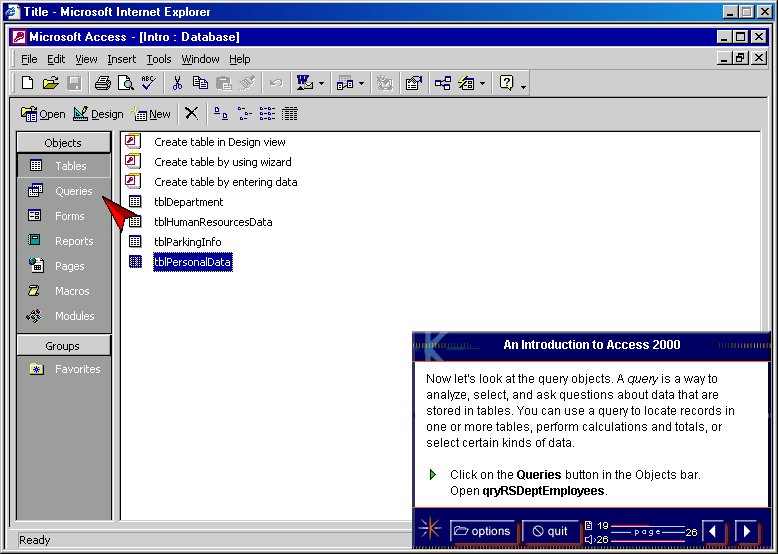


 ) in the dialog
box indicates that you're being asked to perform a hands-on task as directed
in the preceeding text. Whenever you need to observe a particular item on
the screen, you'll see a red arrow (
) in the dialog
box indicates that you're being asked to perform a hands-on task as directed
in the preceeding text. Whenever you need to observe a particular item on
the screen, you'll see a red arrow (
 ) pointing at the item.