|
|
||||||||
|
|
||||||||
|
Self-study learning through My SkillSource provides hands-on, interactive training in a safe, simulated software environment, as if you were actually using the real software. Self-Study courses are modular in format, presenting the student with a series of tutorials, each representing a different lesson in the course. There are several benefits to this modular format:
|
||||||||
|
When you launch one of our QuickSkill Self-study courses, you are presented
with a summary of the important concepts you are about to learn.
From here, you can take an assessment, start the course from the beginning,
or choose any modular lesson to begin your training session.
(Click image for larger view) |
 |
|||||||
|
Assessment exercises are designed to measure your skill level relative to
this course. Convenient controls allow you to start an assessment and
finish it at another time, as well as review your answers before submitting.
(Click image for larger view) |
 |
|||||||
|
Once
the assessment is completed, The topics screen is refreshed with a
prescribed learning path. These recommendation help to streamline the
training process and omit unnecessary training. Furthermore, once all
the recommended topics have been completed, a course completion certificate
will be available to download -- It is not required that the entire course
be taken!
(Click image for larger view) |
 |
|||||||
|
Sample Tutorial in Progress |
||||||||
|
|
||||||||
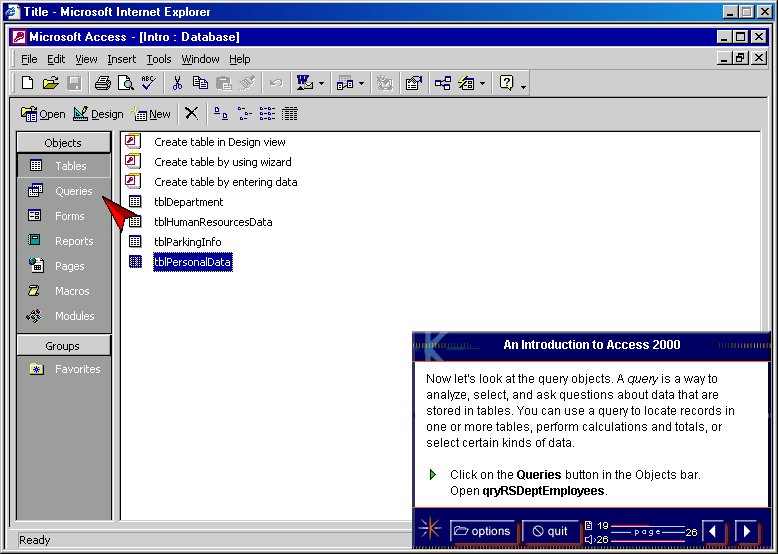
| Once you've started a course, you'll see a dialog box in the bottom right-hand corner of your screen. This is where we'll communicate with you throughout the course and where you will control the flow of the course, and determine its overall status. | ||||||||
|
Training instructions appear in the dialog box above the navigation bar.
This is where the teaching takes place. In addition to conceptual
information and instruction, you will see visual cues to indicate actions
you need to perform, or to clarify the topic being discussed.
A
green pointer ( At various times throughout the learning experience, you'll be asked to perform hands-on tasks. Because you're working in a simulated environment, it will seem like you are using the actual software application with one important exception: if you make a mistake, it's OK, no harm done! In fact, the MySkillSource Assistant will let you know that you've made an error, and will give you the option to try again or let the Assistant perform the task for you. When you reach the end of the course, you'll see a "Congratulations" dialog box. If you wish to take the course again, you can click the "Restart" button. If you're done with the course, just click "Finish" and we'll summarize what you've just learned on the "Points to Remember" page. |
||||||||

 Self-study
Training
Self-study
Training
 ) in the dialog
box indicates that you're being asked to perform a hands-on task as directed
in the preceding text. Whenever you need to observe a particular item on
the screen, you'll see a red arrow (
) in the dialog
box indicates that you're being asked to perform a hands-on task as directed
in the preceding text. Whenever you need to observe a particular item on
the screen, you'll see a red arrow (
 ) pointing at the item.